User Manual
Customer Registration
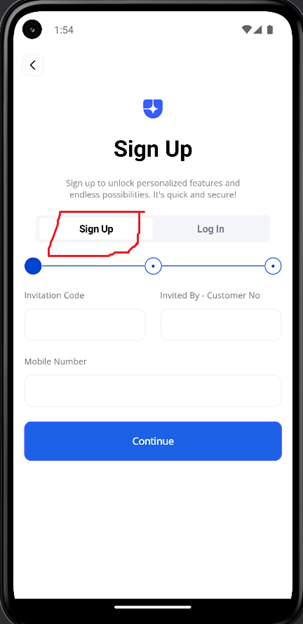
To register:
- Select sign up
- Enter invitation details
o Invitation code: 4 digits like 1234
o Invited by: digits as received in SMS
o Mobile No: your mobile No start with 05xxxxxxxx – 10 digits
- Continue
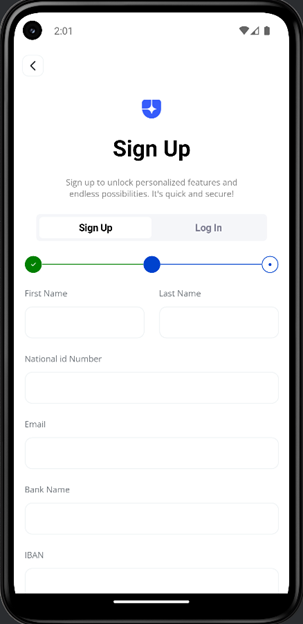
Enter your information:
- National Id Number : 10 digits start with 1
- Email: Tester Email address
- Bank name : any name
- IBAN: stat with SA and digits – total length 24 . example SA1234567890123456789001
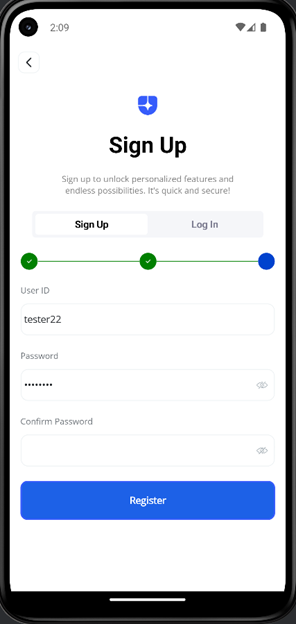
Enter user id, password, and confirm password as per above Table
- Password, for an example Aa12345!
Login
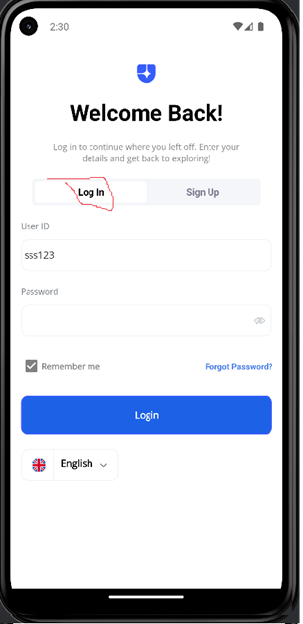
Enter Userid and Password
If you forget your password, use the Forget Password option
- Remember me : to remember your user id in the APP
Landing Page:
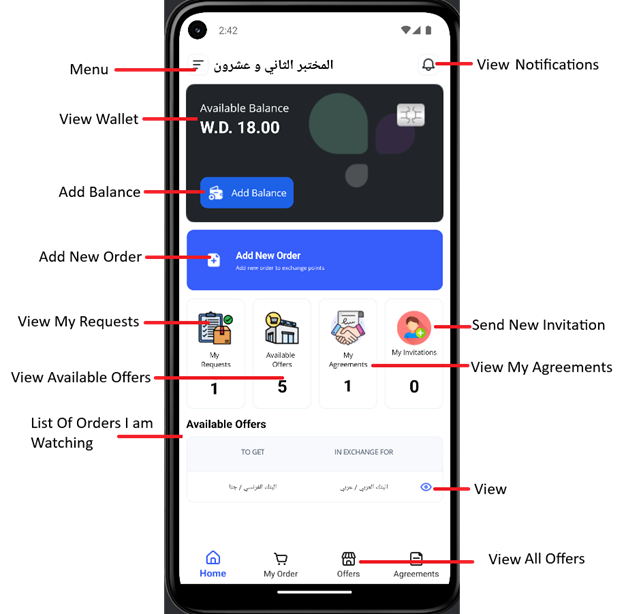
Main Menu
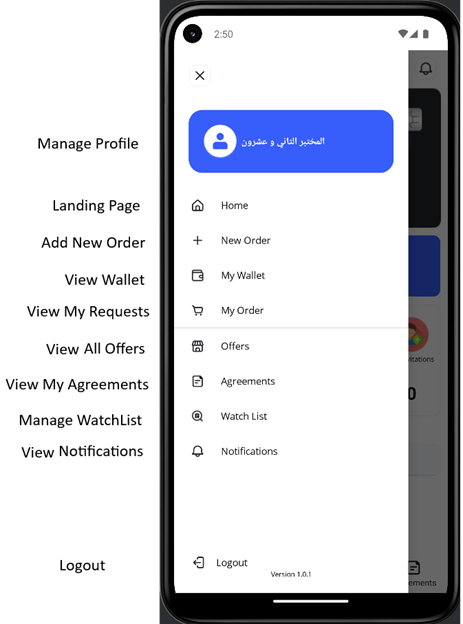
Manage Profile:
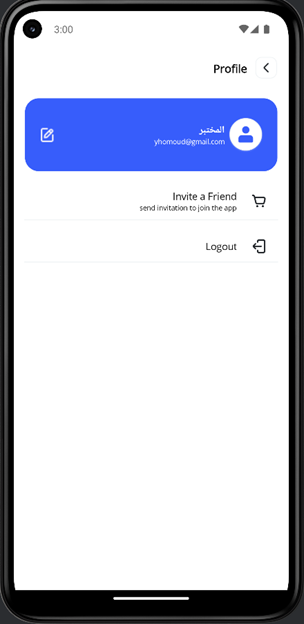
Allow you to:
-
Edit your profile 
- Invite a Friend
- Logout
Edit Your Profile:
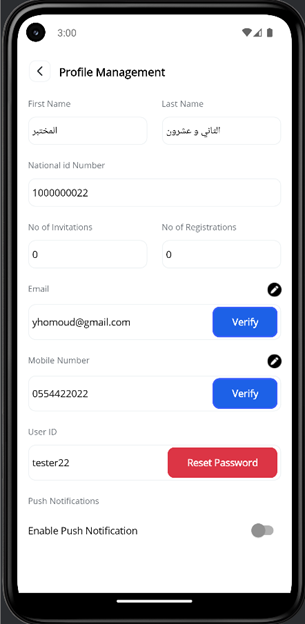
Allow you:
- View your information
-
Change Email  , and Activate Email
 – you will receive
an activation code on your Email. If your Email is active, you will see the
Activated icons
– you will receive
an activation code on your Email. If your Email is active, you will see the
Activated icons 
-
Change Mobile , and Activate
Mobile - you will receive
an activation code on your Mobile. If your Mobile is active, you will see the
Activated icons
-
Change your account password 
-
Enable Push Notification to receive Push Notifications massages  .
.
Note: You need to activate All: Email, Mobile, and Push Notification, so you can acess app features like Add Order, add Watchlist.
Invite a Friend
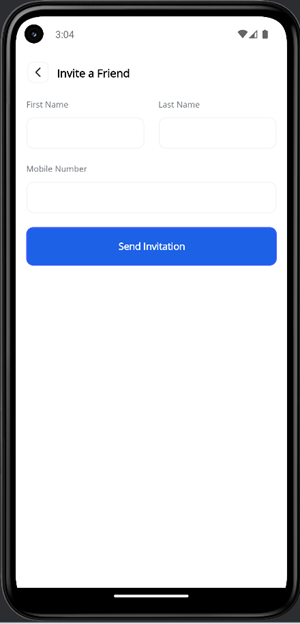
Allow you to invite a friend to register and use the App. Enter:
- Enter your friend first and last name
- Enter your friend Mobile
Your friend will receive an invitation SMS, you can view invitation in Nitrifications Screen.
Add Balance:
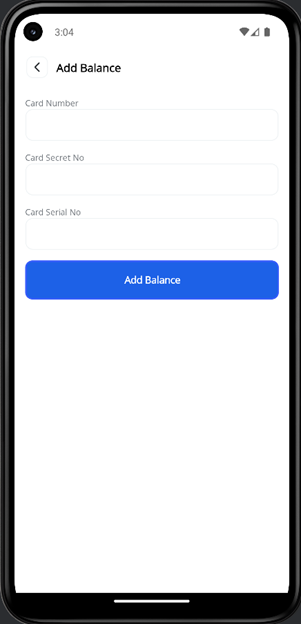
Allow you to add balance to your wallet, so you can Add new orders and Execute Orders.
Wallet:
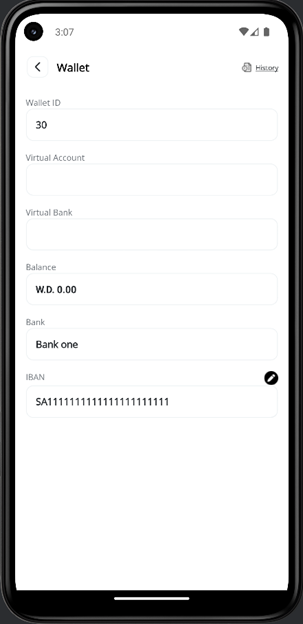
Allow you to view your portfolio details and change your
Bank, and IBAN .
Also, you can click on History  to see your
Wallet statement.
to see your
Wallet statement.
History – Wallet Statement:
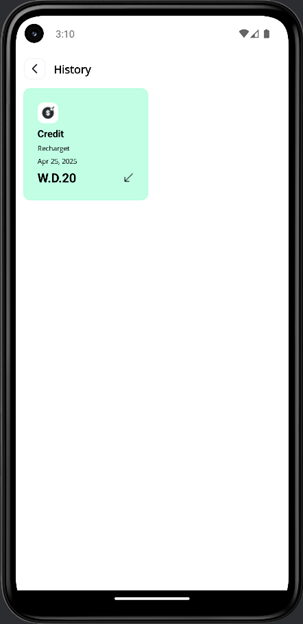
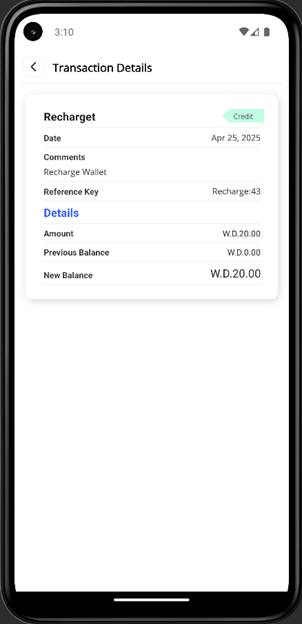
Allow you to see all Wallet Transactions, and you can click on a specific transaction to view Details as in the next screen:
Add New Order
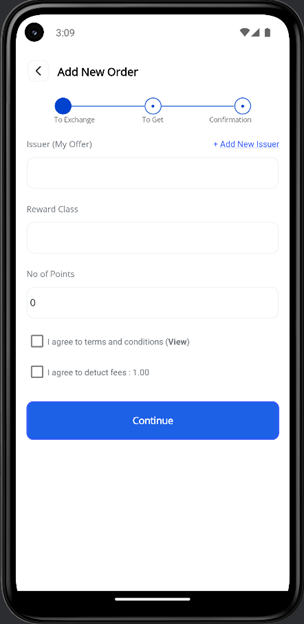
Allow you to add Points Exchange order, 3 steps to add the order, step 1 – Points you want to exchange/give:
- Choose the Issuer – company , you want to give to other customer
- Choose the Issuer Program Name.
- Enter No of Points you want to exchange/give
- Agree to Terms and Conditions and Fees Deduction.
- Click Continue
Note: if you cannot find a specific issuer, you can
add it by clicking “+ Add New Issuer” 
Step 2- Points you want to get/acquire:
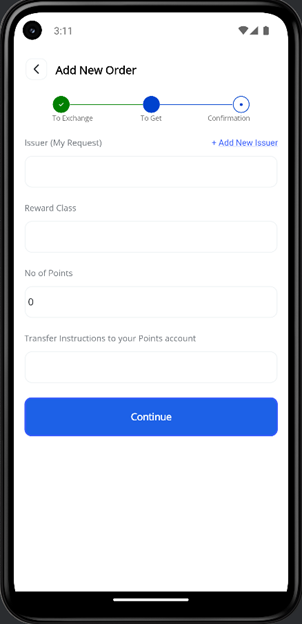
- Choose the Issuer – company , you want to get/acquire from other customer
- Choose the Issuer Program Name.
- Enter No of Points you want to get/acquire
- Enter Transfer Instructions – how points can be transferred to you, to your mobile no, or National ID, or email, or a user id, as per the issuer setup to identify your account with them.
- Click Continue.
Note: Transfer Instruction should be very clear and accurate, so the other party can transfer points to you correctly. These instructions will be available to him once an agreement is created.
Note: if you cannot find a specific issuer, you can
add it by clicking “+ Add New Issuer”
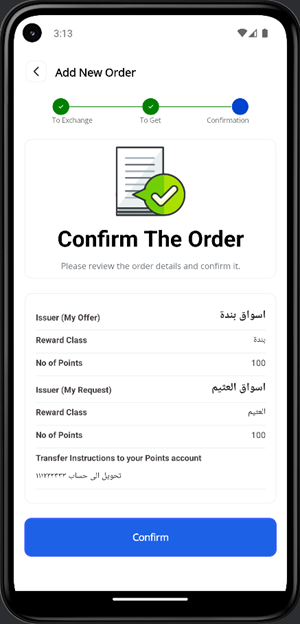
Step 3- review and confirm your order:
My Order Screen:
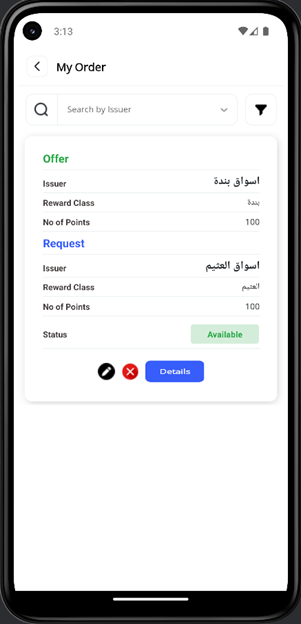
Allow you to view you view all your orders:
-
You can search orders by Issuer filter 
-
You can search orders by Order Status 
o Available: show your new orders that are not yet booked yet by other customers
o Booked: show your orders that are booked by other party, but you did not approve/accept their agreement yet
o Execution: show your orders that are booked by other party, and you already approved/accepted their agreements.
o Completed: show your orders which has been completed – agreement is executed completely – you and the other party completed and confirmed points transfers.
o Cancelled: show your order which is cancelled by you, or by the system if it exceeds order validity period.
- For each order listed in the screen:
o
Edit Transfer Instructions : You can change
Transfer instructions if the order status is still AVAILABLE
o
Cancel Order  : cancel your order
if the order status is still AVAILABLE
: cancel your order
if the order status is still AVAILABLE
o
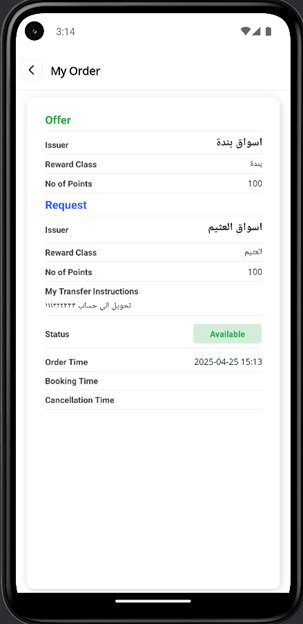
View Details  of the order as per
below screen
of the order as per
below screen
Available Orders Screen:
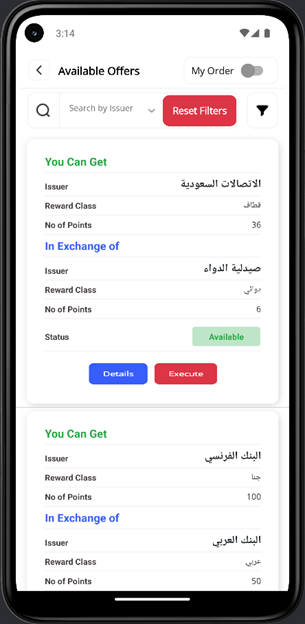
Allow you to see all orders submitted by you and other customers, and you can book an order if it matches your needs
-
You can search orders by Issuer filter
-
You can search orders by Order Status
o Available: show all new orders that are not yet booked yet by customers
o Booked: show orders that are booked, but order owner did not approve/accept their agreement yet
o Execution: show orders that are booked, and order owner already approved/accepted their agreements.
o Completed: show orders which has been completed – agreement is executed completely – both parties completed and confirmed points transfers.
o Cancelled: show orders which is cancelled by order owner, or by the system if it exceeds order validity period.
-
Enable “My Order”  to see your orders
in the list, and your orders will be marked with ”Owned” label
to see your orders
in the list, and your orders will be marked with ”Owned” label  .
.
-
View Details of the order
-
Book an order  if it matches your
needs.
if it matches your
needs.
My Agreements:
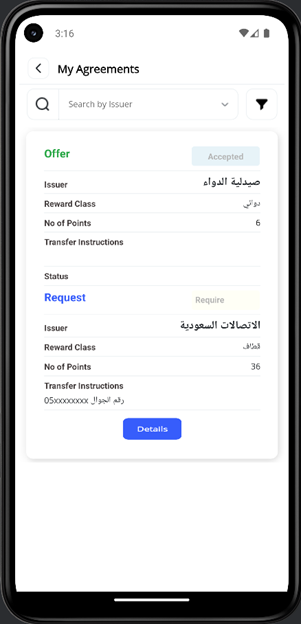
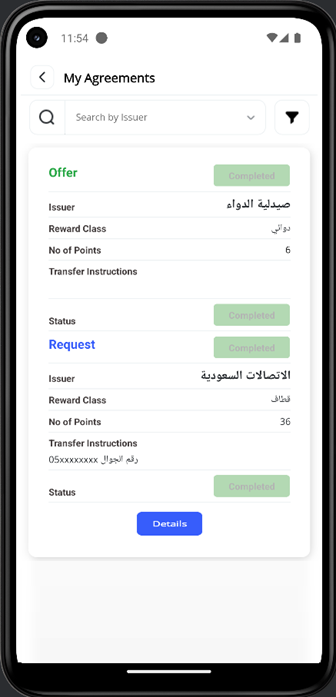
Allow you to see all agreements linked to you, so you can complete the process of the Points Exchange.
If you are an order owner, and someone selected to book your
order, an agreement will be created that bound you and the other customer. You
are Party 1, and the other customer is Party 2. You as Party 1 are the owner of
the agreement. The agreement will be marked with “Owner label” .
If you opt to book an order – you don't own, that matches your needs, an agreement will be created that bound you and the order owner. You are Party 2, and the order owner is Party 1. Order owner as Party 1 is the owner of the agreement.
-
You can search orders by Issuer filter
-
You can search orders by Order Status
o Waiting to execute/Execution: show all accepted agreements (where you as Party 1 or Party 2), but you did not Confirm points transfer yet.
o Completed: show all accepted agreements (where you as Party 1 or Party 2), and you already Confirm points transfer.
Once an agreement is created, agreement
status will be Waiting to execute/Execution, and Transfer
Status will be “Transfer ASAP”, and
button “Confirm”  will appear beside Transfer
Status. That means you should transfer your Offer points ASAP to
the other parties as per his Transfer Instructions
will appear beside Transfer
Status. That means you should transfer your Offer points ASAP to
the other parties as per his Transfer Instructions
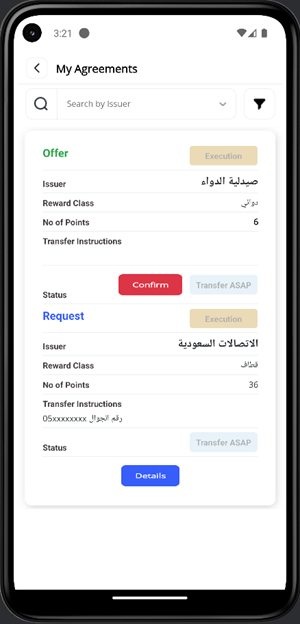
Now, you should login to your Issuer Loyalty Program app/website, and transfer your Offer points to the other parties as per his Transfer Instructions. Make sure, you take screenshots to prove you have done the transfer, if requested by Estbdlha Team.
Once, you completed the transfer of your Offer points,
confirm the transfer by clicking “Confirm” button . Transfer Status
and Order Status will be updated to ”completed”.
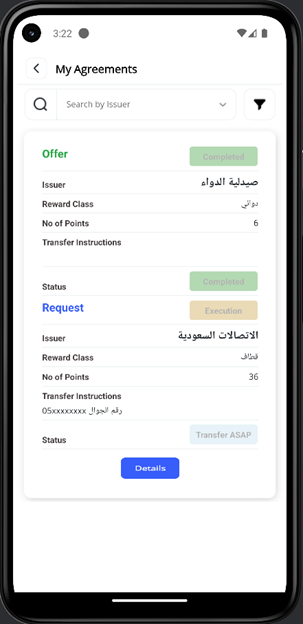
By this, you fulfilled your obligation of the agreement, and the other party will do the same process to complete his Offer points – Your Request Points.
 r
r
Notifications:
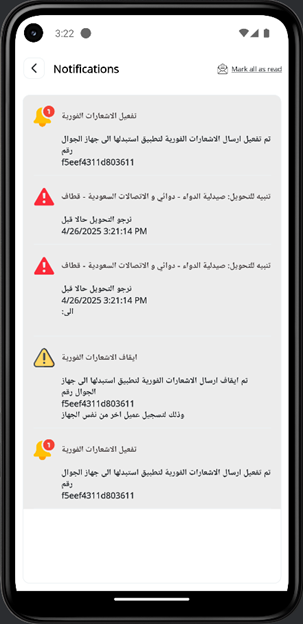
Allow you to see and read all notifications sent to you.
Watch List:
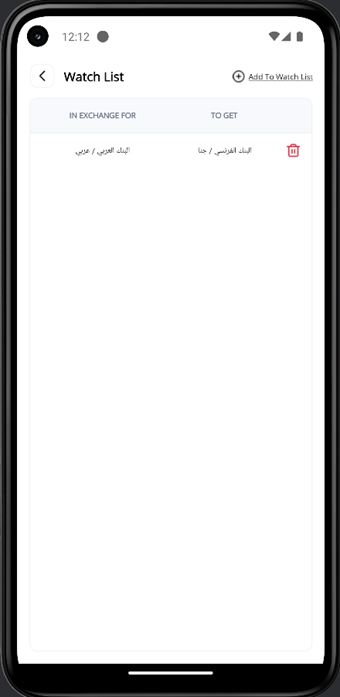
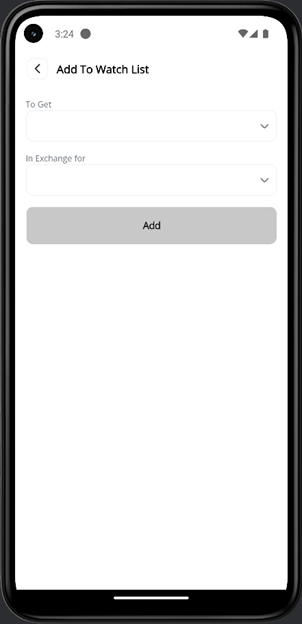
If you want to be notified if someone add an exchange order, that you are looking for, but you might be away from the App, then you can create Order Watching Rule. You will receive a notification so you can act quickly and book the order.
You can add Order Watching Rule by clicking “+ Add to
Watchlist” 
You can delete  Order Watching
Rule if you no longer need it.
Order Watching
Rule if you no longer need it.